Console
The Terrabuild console is a local web interface for exploring a workspace graph, running builds, inspecting cached results, and reading build logs. Start it from the workspace you want to inspect:
terrabuild console
The console uses the same workspace, configuration, environment, engine, graph construction, and cache as the command line. See the console command reference for startup options.
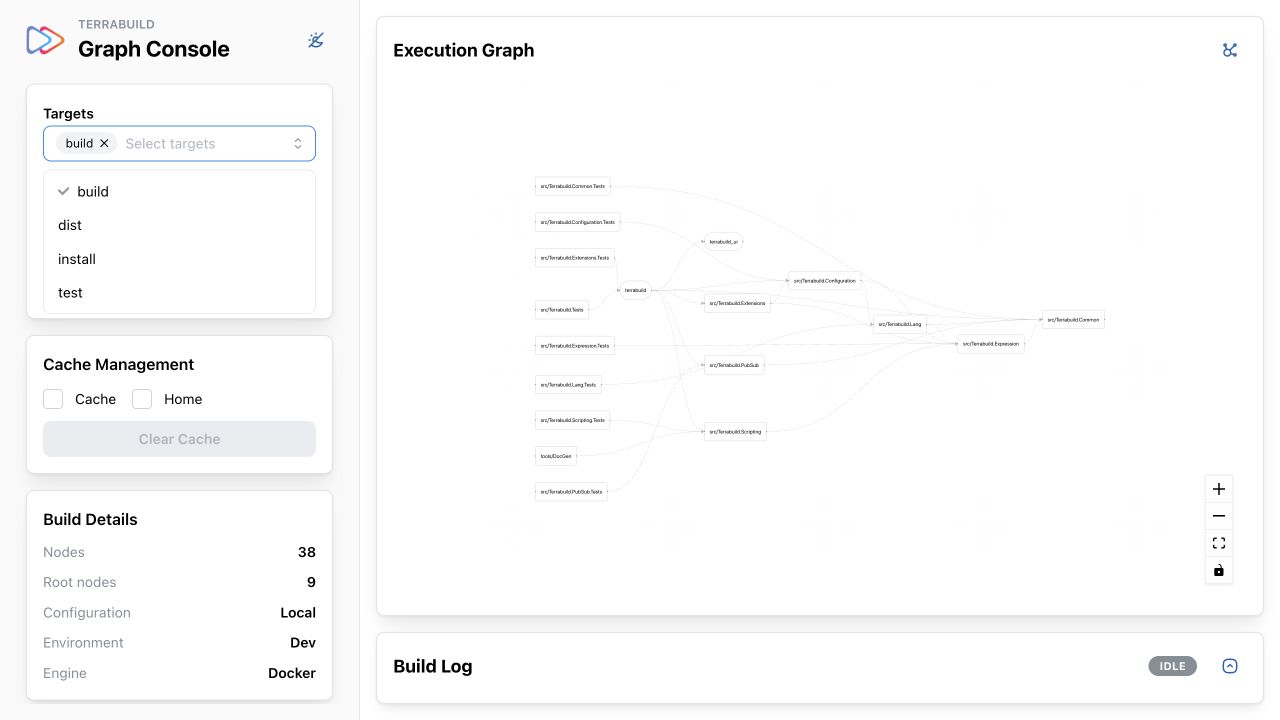
Terrabuild's own build graph. The target picker is open to show the targets exported by the repository's WORKSPACE file.
Select the graph
Select one or more Targets to construct their combined execution graph. Terrabuild includes every project required by those targets, so the graph can contain projects that were not selected directly.
The options beside the target picker apply to builds started from the console:
| Option | Effect |
|---|---|
| Force | Executes work instead of reusing a cached result. |
| Retry | Executes tasks whose cached summary is failed instead of reporting that failure again. |
| Log | Enables detailed logging for the build. |
Open Advanced to change the configuration, environment, engine, and graph display options. Changing a graph input reconstructs the graph and refreshes its status.
The copy button beside Build copies the equivalent terrabuild run command. This is useful when you want to reproduce a console build in a terminal or CI job.
Inspect the workspace
The console is divided into four working areas:
- Build Details summarizes the number of graph nodes and root nodes, plus the effective configuration, environment, and engine.
- Node Details lists the targets represented by the selected project and the cache state of each target. Select a target to display its cached result and operations.
- Execution Graph shows project dependencies. See Reading the graph for node shapes, colors, arrows, phases, and navigation.
- Build Log displays live output during a build and cached output when it is available. Use the expand button to give the log more space.
Build and cache actions
Choose targets and select Build to run the graph. The graph colors and node details refresh when the build finishes.
The Cache Management panel can clear the cache for the active workspace, the user-wide home cache, or both. Cache clearing is destructive: select only the stores you intend to remove before using Clear Cache.